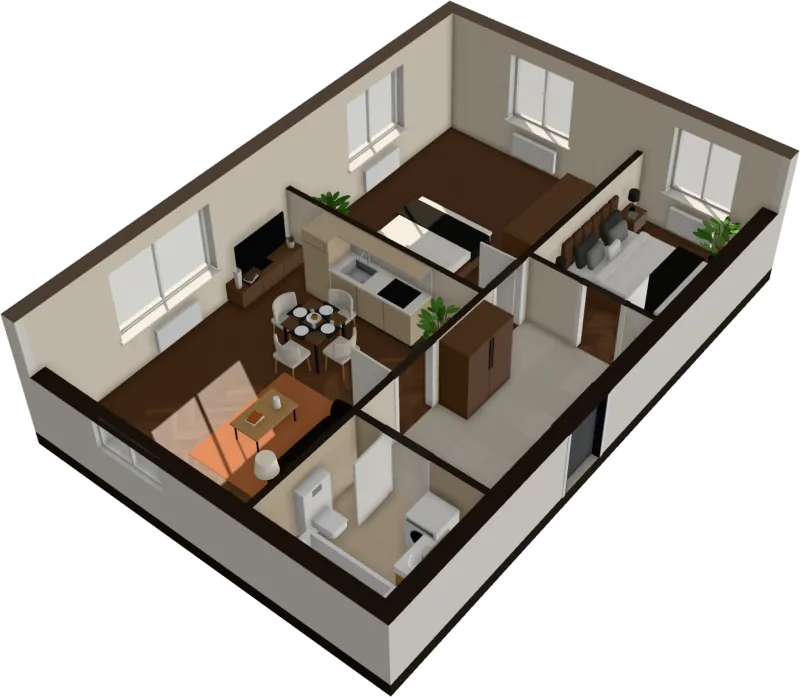
PDF floor plan to 3D
Got the plan as a PDF? Three steps to 3D.
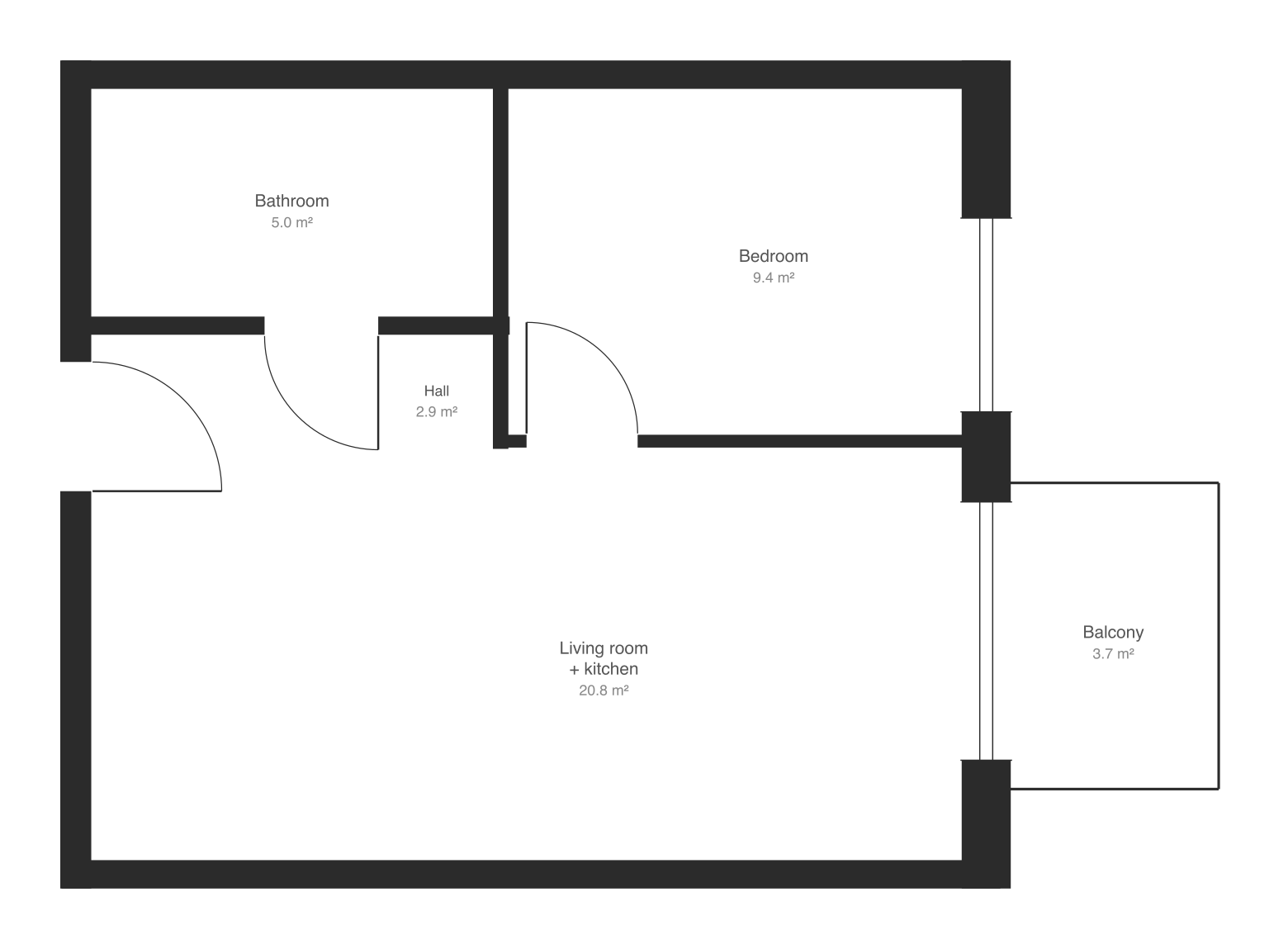
Developers and agents usually send plans as PDFs. Drop the file as it is, pick the page with your apartment and walk through it a few seconds later.
$29 an apartment, paid after you see it · Read in seconds · No install
Step 1
Drop the PDF
Drop the floor plan PDF from the developer or agent into FloorTo3D as it is, with no converting first. It is read in your browser.
Step 2
Pick the page
A PDF with several pages shows them all: pick the one with your apartment. A single-page PDF skips this, and the plan is read at once.
Step 3
Walk through it in 3D
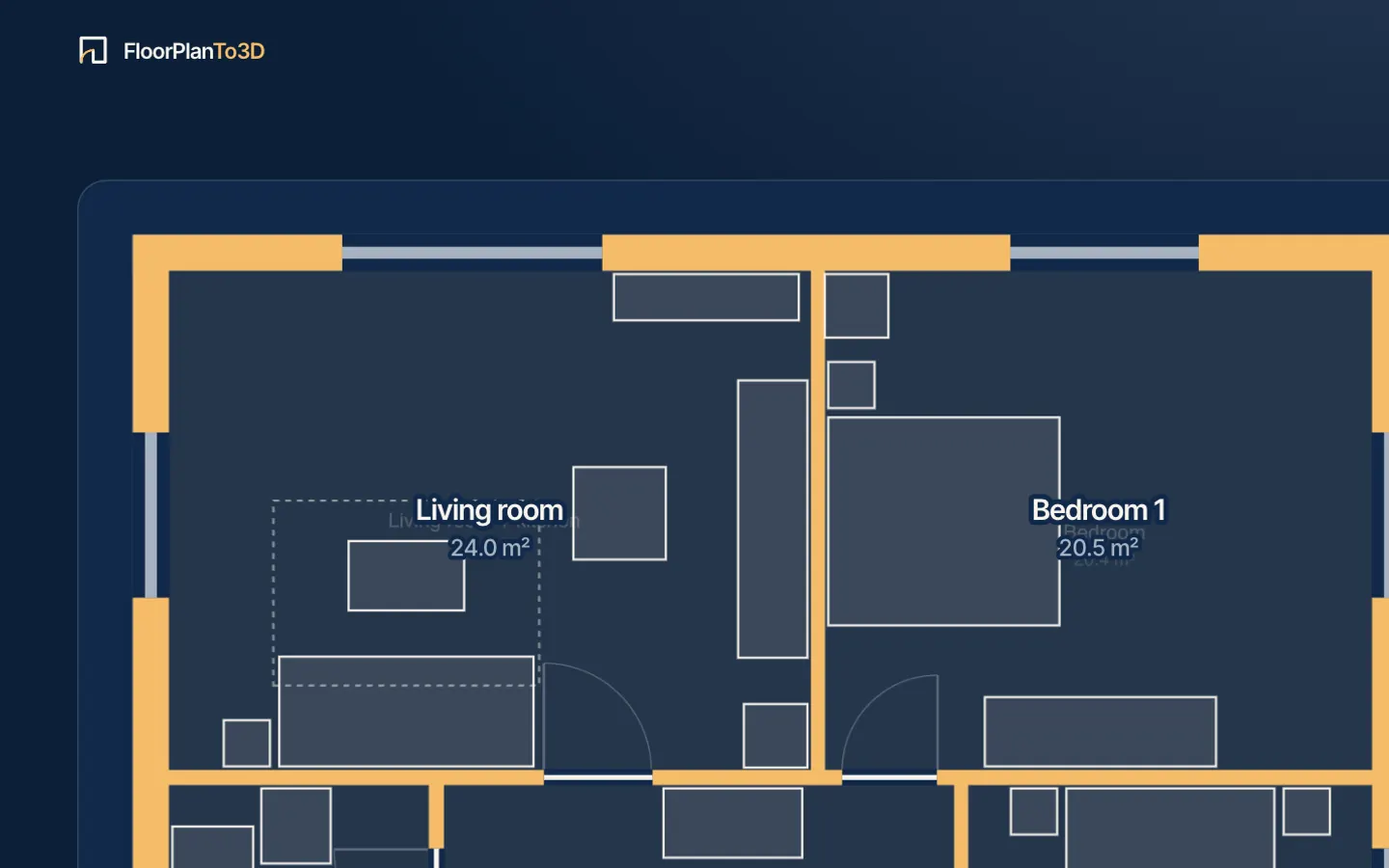
Walls, doors, windows and rooms are read and furnished, and the apartment opens in 3D. If something was read wrong, correct it on the edit page.
Questions, answered
Can I upload a PDF directly?
Yes, in the app: drop it as it is. The page is drawn from the PDF itself, so its lines stay sharp. The quick demo on the home page takes images only.
What if the plan is an image, not a PDF?
PNG, JPG and SVG work too: anything where the walls are clearly visible, 1,500 pixels across or more. Very large images are scaled down automatically.
The PDF has several apartments on one page. What do I do?
Crop the page to the apartment you want before you drop it. Or drop it as it is: if it doesn’t read, choose Frame it again and drag across the drawing to frame just that apartment; the framed part is drawn again from the PDF, so it reads sharp.
Stop squinting at the plan. Walk in.
It takes less time than reading this page, and you see your plan read before you pay anything.
$29 an apartment, paid after you see it · Read in seconds · No install